Overview
The Fysetc Spider H723 is an STM32H723 based board.
There have been a number of changes in the way RRF builds for STM32F4, STM32H723 and STM32H743 boards are being produced from 3.5-RC4 and onwards.
The main changes are:-
- A build per board rather than all boards being contained in one build
- WiFi and SBC mode in one build. If there is an SD card present its in WiFi mode, if there isn’t one installed its in SBC mode. This matches the way the Duet3D boards operate.
- A board.txt setting to denote the WiFi module type installed.
WiFi
You will need a BTT or MKS produced ESP8266 WiFi module or a Fly/Mellow ESP32 Module.
TeamGloomy recommend an ESP32 module over an ESP8266 module as WiFi performance with an ESP32 is superior.
Downloading the board firmware
Teamgloomy now generate per board firmware files. The correct file to use for this board is firmware_spiderv3_h723.bin.
The latest firmware files can be found here
You can choose to download either the latest release or the latest pre-release if available. These instructions are applicable to releases from 3.5-RC4.
Once downloaded, rename it firmware.bin
WiFi firmware preparation
The latest firmware files can be found here
- WiFiModule_esp32.bin
DWC (DuetWebControl)
The correct version of DWC should be downloaded from here.
The version you download should be of the same version number as the board firmware you downloaded above.
For example, if version 3.5.0 of the board firmware has been downloaded, 3.5.0 of DWC should be downloaded.
Purchasing the WiFi Adapter
If you are just purchasing an adapter now, TeamGloomy Strongly recommends an ESP32 adapter as the WiFi performance has been greatly increased.
You will need to purchase an adapter that plugs into the header. They can be purchased from Mellow.
- Mellow (who works in close collaboration with TeamGloomy) on Aliexpress
Connect the ESP32 Adapter to the board as shown below. (Antenna also has to be connected)
If you don’t want to be able to update the WiFi adapter via the Fysetc Spider H723 it’s not needed to connect the 4-pin serial cable. Then add a small amount of solder in the area highlighted below to get power from .
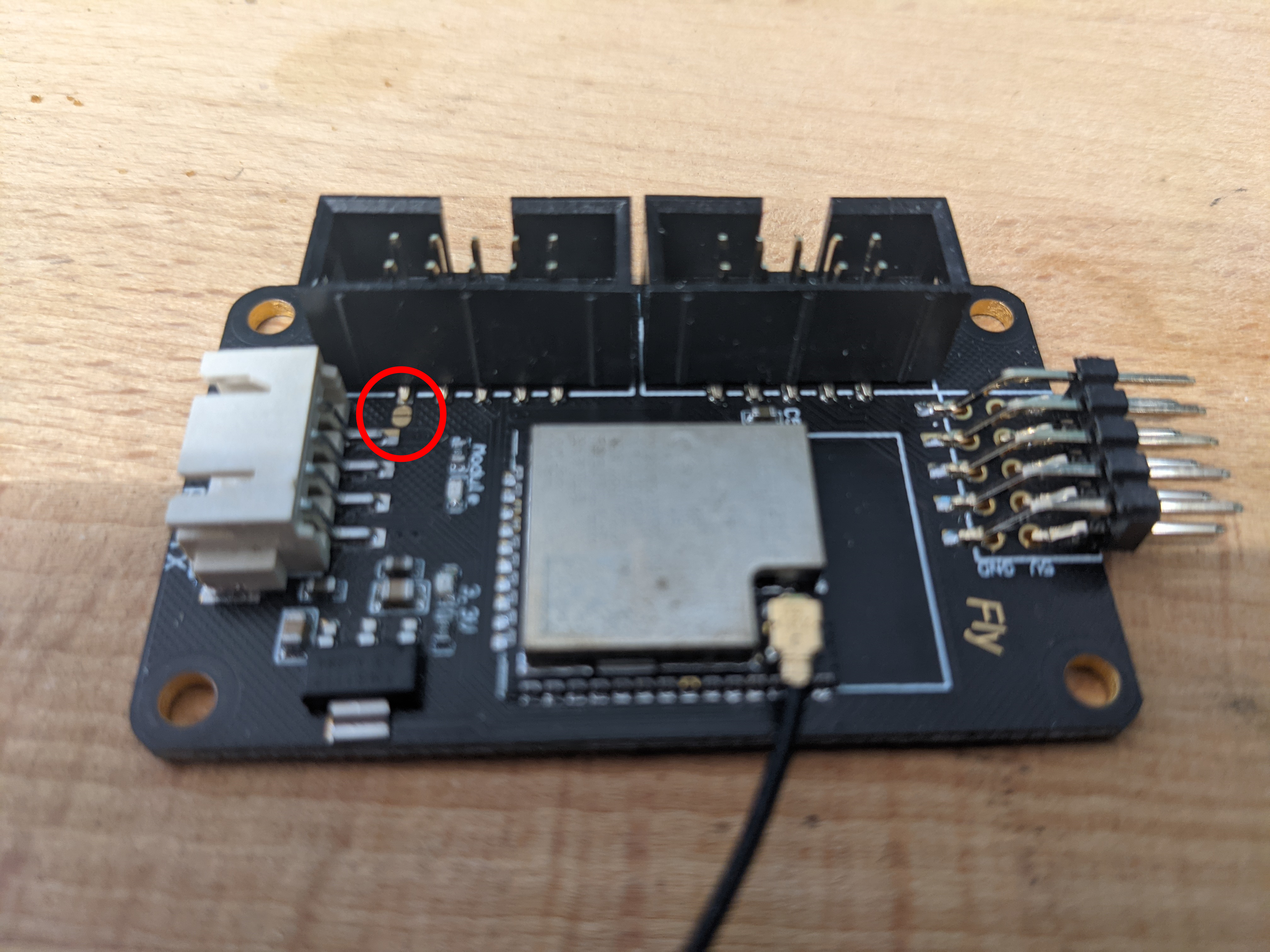
Generate a config
We provide a handy online tool to assist you in generating a set of config files for your 3D printer. The configurator doesn’t cover all options that RRF can be used for (such as dual motor axis control, which can be manually added later), however it does give a good start.
We also have a collection of user created configs which can be a useful reference. They can be found here
Manual board.txt Changes
If you are using a set of config files provided by someone else or have no need to use the configurator, you may need to create your board.txt file manually.
From 3.5-RC4, the majority of the board.txt configurables are pre-configured per board.
The preset configurables for the Fysetc Spider H723 are listed below for reference.
board=spiderv3_h723
board.longName="Fysetc Spider V3 STM32H723"
sdcard.internal.type=1
SPI0.pins={A.5,A.6,A.7}
SPI1.pins={NoPin,NoPin,NoPin}
SPI2.pins={C.10,C.11,C.12}
SPI3.pins={NoPin,NoPin,NoPin}
SPI4.pins={NoPin,NoPin,NoPin}
SPI5.pins={NoPin,NoPin,NoPin}
SPI6.pins={E.12,E.13,E.14}
SPI7.pins={NoPin,NoPin,NoPin}
SPI8.pins={NoPin,NoPin,NoPin}
stepper.powerEnablePin=NoPin
stepper.enablePins={E.9,D.9,D.15,D.4,E.5,E.3,E.8,C.5}
stepper.stepPins={E.11,D.8,D.14,D.5,E.6,E.2,D.12,E.1}
stepper.directionPins={E.10,B.12,D.13,D.6,C.13,E.4,C.4,E.0}
stepper.numSmartDrivers=8
stepper.TmcUartPins={E.7,E.15,D.10,D.7,C.14,C.15,A.15,D.11}
power.VInDetectPin=NoPin
sbc.TfrReadyPin=NoPin
sbc.csPin=NoPin
sbc.spiChannel=255
wifi.espDataReadyPin=A.8
wifi.TfrReadyPin=C.9
wifi.espResetPin=D.2
wifi.csPin=C.6
wifi.serialRxTxPins={A.10, A.9}
wifi.moduleType=esp32
wifi.spiChannel=2
heat.tempSensePins={C.0,C.1,C.2,C.3,B.1,B.0}
serial.aux.rxTxPins={NoPin,NoPin}
can.writePin=D.1
can.readPin=D.0
Unless you are overriding some of the above settings, or adding additional features, such as an accelerometer or 12864 display, a board.txt file is not required.
Sensorless Homing
Follow the instructions as found here
You can now continue getting the SD card in the correct format.
WiFi Pins
As RRF doesn’t know which WiFi module you are using and what method you are using to connect the module, you will need to specify the board.txt entries for the module you are using.
For an ESP32, they should be as follows:
//WiFi pins
wifi.espDataReadyPin = PA_8
wifi.TfrReadyPin = PC_9
wifi.espResetPin = PD_2


//ESP32 RX/TX Settings
wifi.serialRxTxPins = { PD_1, PD_0 }
serial.aux.rxTxPins = { PA_10, PA_9 }
Drivers
The following line should be added (obviously with the array entries matching your drivers and their locations):
stepper.DriverType = {Tmc2208, Tmc2240, tmc2209, tmc5160, stepdir}
The DriverType array allows for any driver to be used in any slot so there is no order requirement like the previous detection method. The array must also include an entry for each driver slot up to the last one thats populated.
The following list of entries are valid:
none
stepdir
tmc2208
tmc2209
tmc2660
tmc5160
tmc2240
The entry for stepper.numSmartDrivers is preset in the firmware for the number of drivers your board can handle. The number of drivers only needs to be changed if you are adding more drivers using something such as the BTT EXP MOT.
TMC2240 Driver Temperature
TMC2240 drivers support reporting their own temperature, rather than just hot and very hot like the other TMC drivers. To utilise this, add the following line to your config.g
M308 S11 Y"drivers"
This will return the highest temperature reading from any of the drivers, 2240s will return the actual temperature, other drivers will return 0, 100 or 150 (as before).
If you want to know the temperature of a particular driver you need to add the following line (as well as the above):
M308 S12 Y"drivertemp" p"S11.X"
Where x is the driver number that matches the driver number used by M569
Sensorless Homing
Follow the instructions as found here
SD Card preparation
Now all the required files have been gathered, the SD card structure needs to be created.
SD Card Specification
When choosing an SD Card to use with RRF, we recommend one with the following features:
- a branded card with a speed rating of Class 4 or higher
- of up to 32GB capacity, formatted as below. RepRapFirmware does not support SD cards formatted in exFAT format.
Formatting
If you can’t use the recommended formatting tool, then the following points should be taken into account:
If you need to reformat the micro SDHC card:
- If the capacity of the card is 4GB or lower, use FAT16 format
- If the capacity is more than 4GB (up to 32GB) then you will have to use FAT32 format
- All cards should be formatted with 512 byte sectors
- For best upload speed choose the largest cluster size available, which is normally 64kb for FAT16 and 32kb for FAT32
SD Card Structure
The following structure should be replicated on your SD card.
sd card root/
├─ filaments/
├─ firmware/
│  ├─ WiFiModule_esp*.bin
├─ gcodes/
├─ macros/
├─ sys/
│  ├─ bed.g
│  ├─ board.txt $ If required
│  ├─ config.g
│  ├─ homeall.g
│  ├─ homex.g
│  ├─ homey.g
│  ├─ homez.g
│  ├─ pause.g
│  ├─ resume.g
│  ├─ sleep.g
│  ├─ stop.g
│  ├─ tfree0.g
│  ├─ tpost0.g
│  ├─ tpre0.g
├─ www/
│  ├─ contents of DuetWebControl-SD.zip
firmware.bin
In the above example, the contents of the sys folder have come from the online configurator. The WiFiModule file name will either be:
- WiFiModule_esp32.bin
- WiFiModule_esp8266.bin
- WiFiModule_esp32eth.bin
Final Setup
Once connected, power up the board using 12-24v and connect to the USB port on the board. Connect to the board using a program such as putty. Follow the instructions here to set it up for RRF. Change the Com port to match the Fysetc Spider H723 and connect. The baudrate doesn’t matter.
Flashing the WiFi Firmware
Type in the following to putty
M552 S0
M997 S1
Wait for the uploading of the WiFi firmware to finish.
Sending your WiFi Credentials
Send the following
M552 S0
M587 S"your SSID" P"your password"
M552 S1
If you wanted to use “PassWord”, you would write P”P’a’s’sW’o’r’d” with the ‘ indicating the following letter should be lower case. Explanation here.
The blue light on the WiFi chip shoould then flash blue and will go solid when a connection has been established. The ip address will be shown on the serial connection. It is also possible to type just M552 to get the current ip address reported back.
The final thing to do is add the line “M552 S1” to your config file. This can be done through the web interface. This just ensures that the WiFi connection is started at start up. There is no need to add the M587 command as this is written permanently to the flash of the ESP8266 chip.
Once up and running
You will need to PID tune your tools and your bed. Please be aware that bed tuning may take up to an hour and tool tuning normally takes around 15 minutes. If it takes longer, that is also fine as up to 30 cycles may be ran.
To tune the bed, run the following command, changing the temperature (the S value) if a different tuning temperature is required.
M303 H0 S60
To tune each tool, run the following command, changing the temperature (the S value) if a different tuning temperature is required. This proceedure will activate the part cooling fans during the final phase of the tuning process so their effect is taken into account. If your printer has more than one tool, make sure each one of them is tuned.
M303 T0 S220
Once the tuning is complete, either copy the M307 command into the heater definitions or send M500, ensuring you have M501 at the end of your config.g.
If the tuning fails at the end, carry on saving the values as in most cases the outputted values still work correctly.
If the values still result in a heater fault, please refer to this wiki page for information about how to adjust the values manually.